Contents
- Index
Will My Computer Support M+O?
We have tried to make M+O function on the largest range of computers possible, though we can't guarantee that the program will function on all hardware. The following tutorial helps you see if your computer can support M+O.
The first time M+O is run you will be asked to choose an audio driver , perhaps requiring you to download ASIO4ALL if your computer has no ASIO-supported audio hardware. This tutorial assumes you have, at this point, either chosen an ASIO driver. If you are running on Windows XP you can choose the "Don't use ASIO," though we still suggest you use an ASIO driver.
Checking Audio Output
Launch M+O (if it is not already running) and choose Player from the Setup form. Or if M+O is already running, select Choose Player+Piece from the Main menu and choose Player.
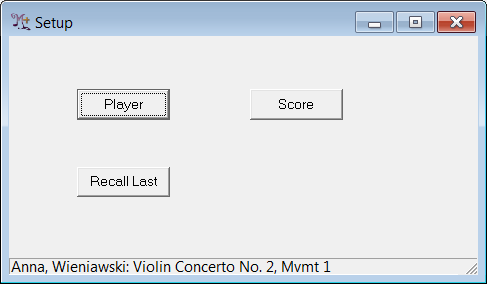
You will see a list of previous users of the program, perhaps only containing "Ion Mazur." Highlight "Ion Mazur" from the list of players (he will always be there), and click Ok. Now chose Score from the Setup form. Highlight "Saint Saens: Introduction and Rondo Capriccioso" from possible pieces and click Ok.
Select Choose Take from the Main menu, highlight take #10 and choose Ok. The program's Spectrogram window will be drawn, representing the audio file you have chosen.
Hit the Play button from the Navigate Panel at the bottom center of the program window. You should see a blue line gradually move across the image. A few seconds into the process you should start to hear a violin. If what you hear sounds okay, skip to the section on "Checking Audio Input." Otherwise:
If you hear no sound at all
check to see that M+O's Volume on the Mixer Contols is set around the middle.
if you are not using ASIO, check the audio mixer settings on the Windows Control Panel, to make sure that audio is not muted or has the volume set to 0.
exit all other programs that might be using audio.
listen for audio both through the headphones and speakers.
If you still can't hear any audio, or if the audio is garbled and you are using ASIO4ALL, check the ASIO4ALL control panel. This panel can be accessed from your system tray (at the bottom right of your computer). Look for a green square icon and click on this to launch the control panel. If you see more than one device on the left, disable any device that you are not using.
If none of these steps allow you to hear audio, it is possible that your computer's audio hardware is defective. In this case you should have similar audio problems with other programs. Otherwise M+O may not function on your computer.
Checking Audio Input
Having verified that M+O can produce audio output on your computer, it's now time to check that both audio input and output will work at the same time.
Download and run the Mozart Flute Concerto in D, 2nd Movement from free pieces. It doesn't matter whether you even own a flute --- this is just for testing purposes.
After you have run the download, choose Choose Player+Piece from M+O's Main menu. Choose Player, enter your name in the New Player box, highlight the type of instrument you play and click on Add. Your name will now be highlighted in the Player List. Click on Ok to return to the previous form.
Now choose Score from the Setup form. You should see the movement you just downloaded appearing in the list of pieces. Highlight the Mozart Flute Concerto movement and click Ok.
Click on the Meas button in the Live Controls Panel in the lower right of M+O's main window. This will bring up the Choose Range form. Type "1" in the Start Measure box and highlight "1+0/1" in the Full Start Position box. Similarly, type "5" in the End Measure box and highlight "5+0/1" in the Full End Position box. Hit Ok to dismiss the form.
Now click on the red Record button on the Live Controls panel. You should hear the orchestral accompaniment at the start of the piece. After a few seconds have passed, click the stop button on the Live Controls. If you don't hear the audio or it is garbled, try the suggestions given above for checking the audio output.
Now click the Record button again, and as the orchestra plays, speak into your computer's microphone. If you don't know exactly where this is, don't worry --- just speak toward your computer. As you do this the Level Indicator on the left of M+O's main window should move up and down as your speaking volume varies.
If the indicator doesn't respond to your voice, or if you get a message saying "No microphone signal", exit M+O and try the Windows "Sound Recorder" program (under Accessories) to make sure you have a working microphone. If you cannot record and play back audio with this program, check to see that the Windows MIxer controls have not muted the microphone, make sure the microphone level is not set to 0, and make sure that "Microphone" (not "Line In") is set for the recording source. If you still cannot record audio with the "Sound Recorder" program, your computer may not have a built in microphone - not all computers do. An inexpensive computer microphone will work fine with the M+O (though may limit the quality of any recordings you make). Get a microphone and plug it into the microphone jack.
We now proceed assuming you have managed to get the Windows "Sound Recorder" program to work, thus verifying that you audio input works on your computer. Repeat the procedure described above in which you speak into the microphone will M+O is playing the orchestra. If the Level Indicator still does not respond to your voice:
if you are using ASIO4ALL, check to see that the microphone is turned on in the ASIO4ALL control panel. To bring up the this control panel, look for a square green icon in your system tray and click on it.
if you are using ASIO4ALL, make sure that all other microphone or input sources are turned off.
make sure no other program using audio is running. If in doubt, close all other programs.
When the Level Indicator responds to your voice, let the short excerpt run to completion. When this is done you will see an image of the audio you just recorded. Play this audio back using the Play button on the Navigate panel. You should hear your voice on the play back. If you hear your voice and it sounds more or less like it should, M+O will work on your computer!
If the Level Indicator is too high, (turning red frequently or always), or too low (below halfway on the level indicator), run the Sound Check test to set the input level appropriately.
Some low quality microphones seem to wobble, especially at relatively low volumes. Such a microphone will work with M+O, though you may prefer recordings made with a better microphone.
If you hear occasional clicks or pops in the audio, the microphone signal is garbled or defective in other ways, your audio hardware or audio driver may not be quite up to supporting M+O. You may wish to run M+O on a different computer, or with external audio hardware attached to your computer.